
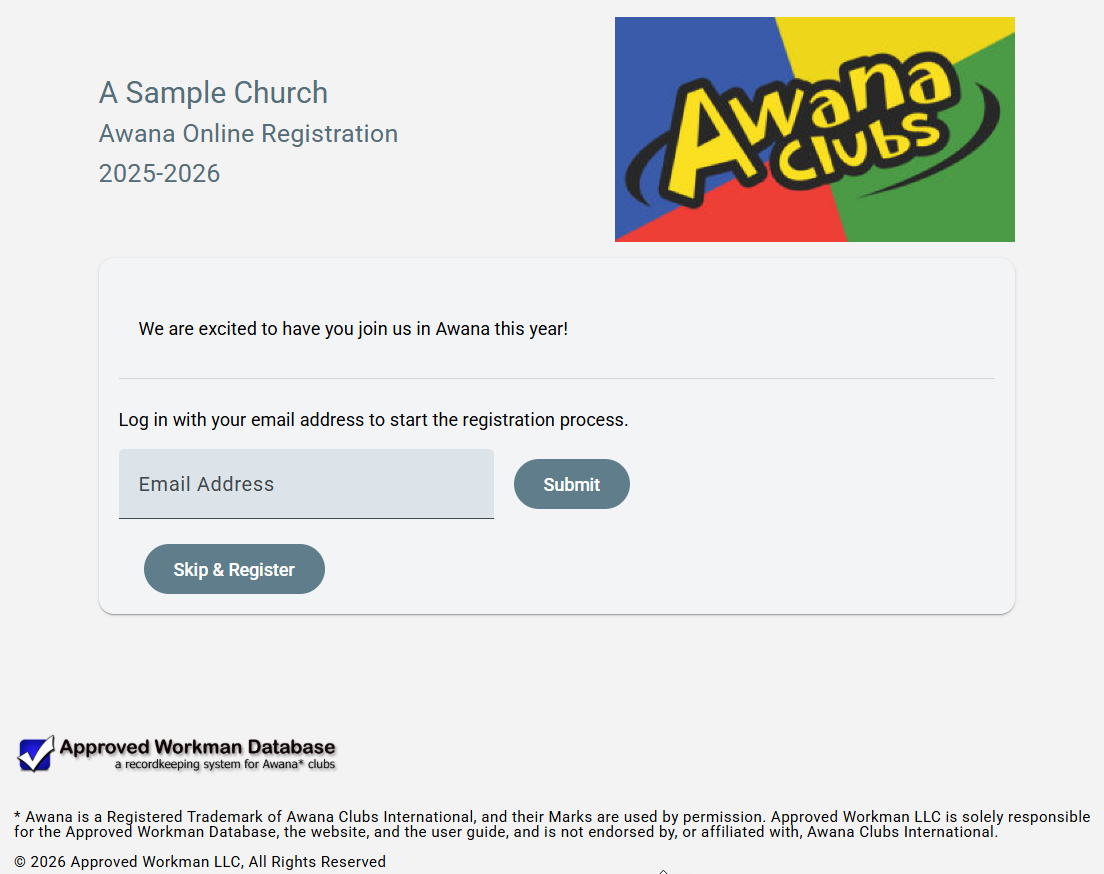
This is the website that parents or leaders see when they use the link that you provide. They should begin the log in process by submitting an email address. A code will be sent to the email address to use to complete the log in.
- If a matching email address is found in the database, a list of members with primary associations to the matched household will be shown along with the status of the member and options to Edit a pending registration, Register a member, or Add a new member. When registering an existing member, the person's member details will be filled into the form. For all members, the household details will be filled into the form. Contacts are also shown with an option to Delete those that are no longer current.
- If no matching email address is found, information can be entered to register clubbers or leaders. As long as the Log-in Email address is used in the registration form, the household list of members will be created and shown as described above.
Note: the Skip & Register button can be used to access the registration form without an email address, but this requires completing the entire form for each member, without the ability to pre-fill any information, including for the household fields. We highly recommend logging in with an email address.
Most of the fields on this page, including the image, title, welcome, and confirmation texts, are customizable using the settings on the Registration > Manage Site page.
The Landing Page of the site is a welcome page, showing the customizable image and text. Here is an example:
The fields that are visible and required on the registration form are determined by the settings on the Registration > Manage Site page. Here is an example of what the form could look like, depending on the customized settings:
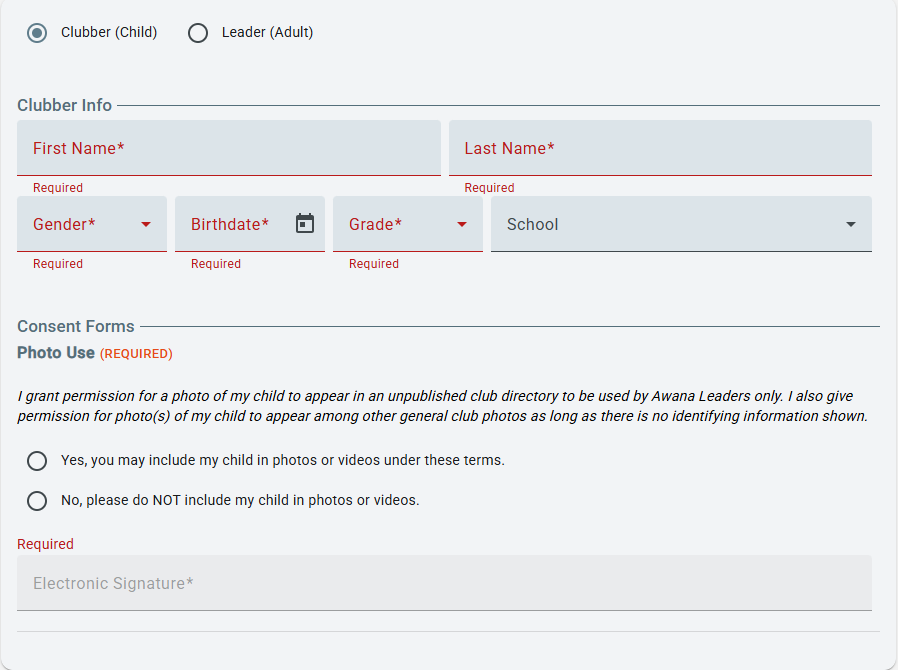
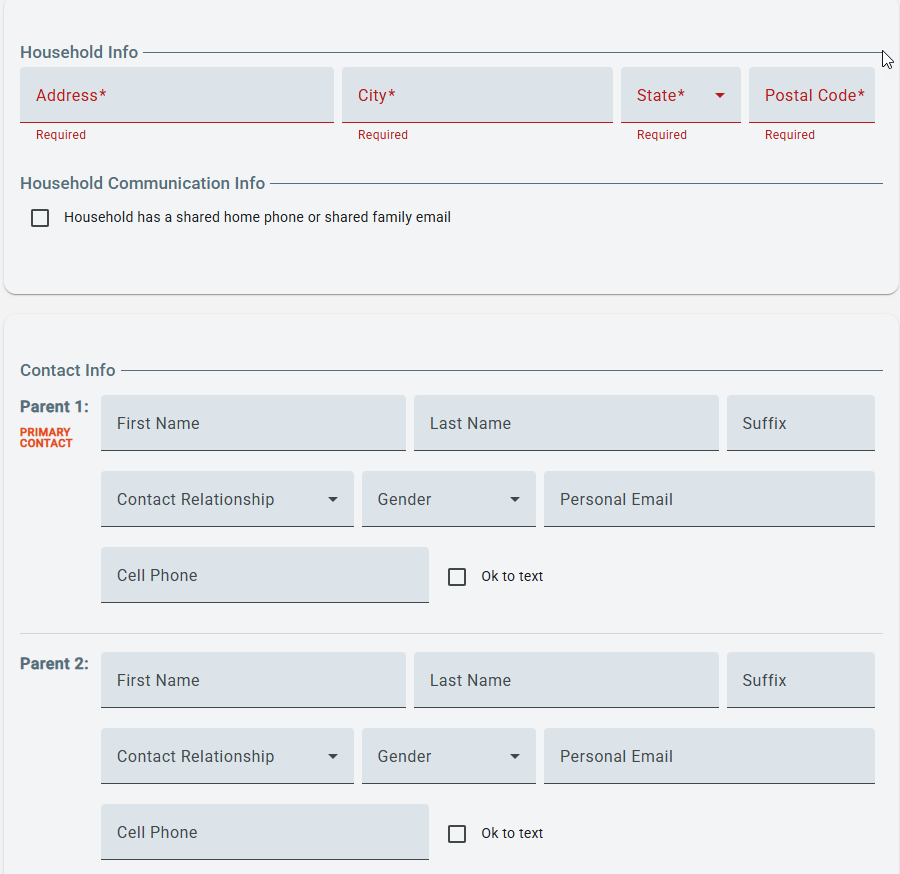
In order to help normalize the data getting accepted into the "real" member and household records, the text in the registration form will be changed to mixed case. For example, JOHN or john would be updated to John before saving. Also, the various parent name fields will be used to create the Parent(s) field that gets saved in the "real" household record.
Once a clubber has been registered successfully, a confirmation page with a customized confirmation message is show. Here is an example (when logged in with an email address):
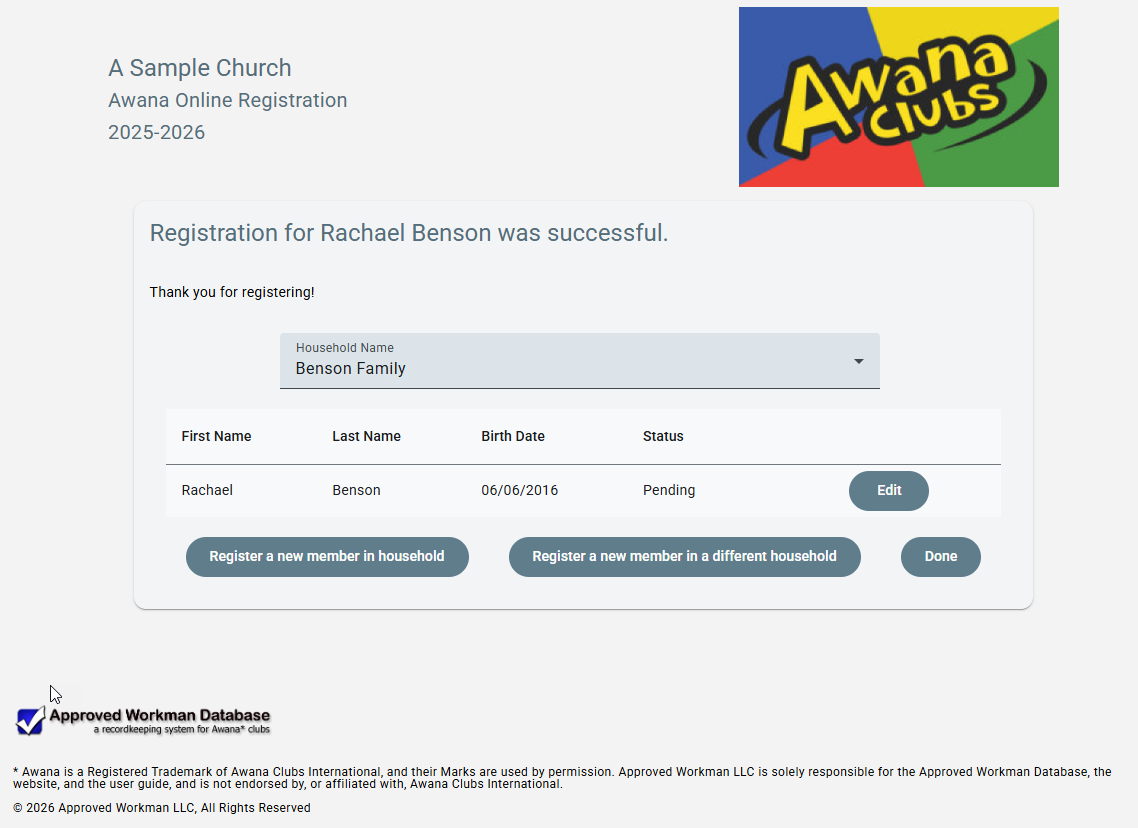
The new registration should now show within the AWdb's Registration > Pending page.
For additional details, please see the How-to Guide called Register members using an Email address to Log in.
Note: If an invalid customer number and/or code is used in the Online Registration site, this message is shown: Ask your Awana leader for the registration link specific to your church in order to register online.