
When parents or leaders access your Online Registration Site, they will be shown your customized Landing Page along with the following instructions: "Log in with your email address to start the registration process."
They should enter an email address and click the Submit button. A code will be sent to the email address. That code should then be entered to complete the log in.
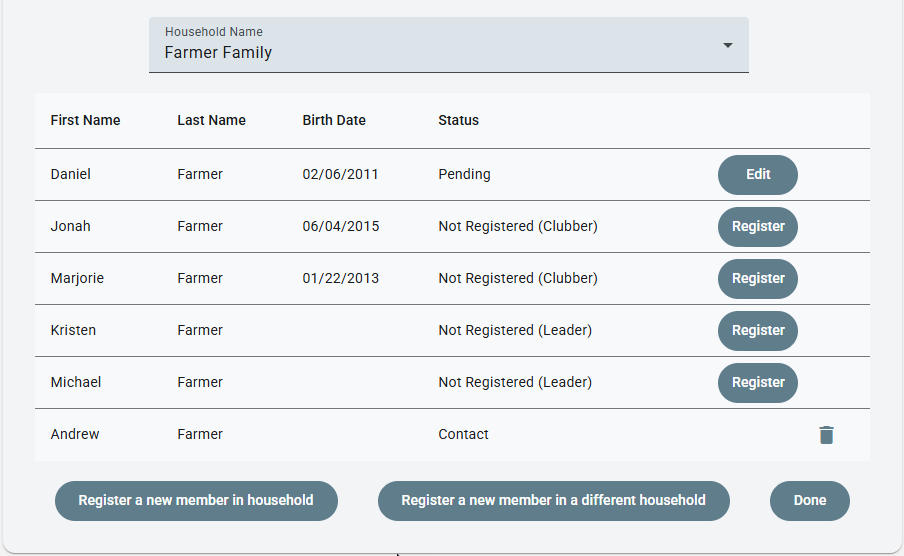
- If a matching email address is found in the database - The Household Name field will be populated with the matching household/s. If more than one was found, use the dropdown to make a selection. A list of members with primary associations to the selected household will be shown along with the registration status of the member and options to Edit a pending registration or Register a Not Registered member. There are also buttons to Register a new member in household, Register a new member in a different household or be Done.
When the Register button is used for a specific member, the person's member details will be filled into the registration form. For all members, including 'new in household', the household details will be filled into the form.
Contacts are also shown with an option to Delete the contact if no longer needed.
Here is an example of a household list from a matched email address:
NOTE: If registering a new member in a different household, the registration page is cleared so new member and household data can be entered. The new household will be shown in the Household Name dropdown selection if the email used for logging in was included in the registration. If different email addresses are used, the new member will be submitted for registration, but the new household will not show in the list since that only shows households associated with the email address used for log-in.
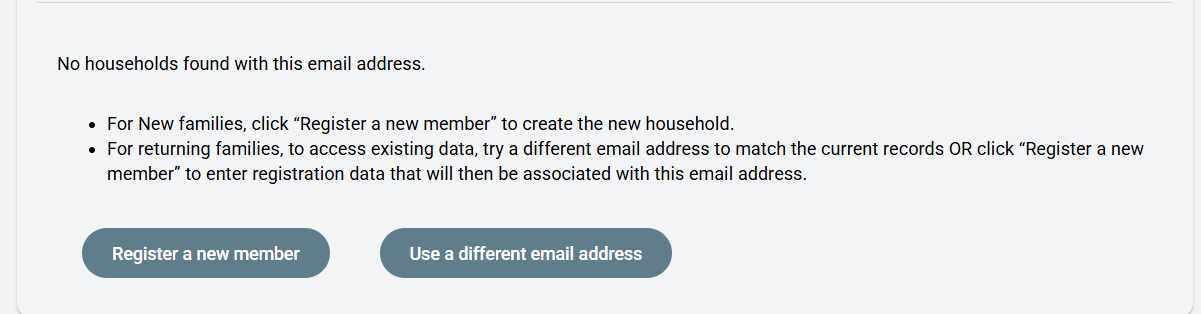
- If no matching email address is found - a message will be shown stating "No households found with this email address." There are generally two situations that cause this result:
- New families - no data exists to match. In this case, use the Register a new member button which will open the registration form. Complete the form for the first member in the family. Once the form is submitted for one member, as long as it includes the email address used for log-in, the household will be created and shown as described above. To register additional members, use the Register a new member in household button. The household information will be pre-filled into the form.
- Returning families - this could be due to a different email address in the household record than was used for log-in. Click Use a different email address to try to match existing data in the household record. It could be that there is not an email address in the household record. In this case, they should use Register a new member and complete the registration form as described for new families.
Important: the Pending page will still attempt to match each person to an existing record based on First Name, Last Name, and Birth Date, so even if returning families use this method, it does not create duplicates in your database. Not matching a household in the database simply means that existing data can't be used to pre-fill the registration form. It must be completed manually.
Here is an example of the result when there is no match:
There is a Skip & Register button that can be used to access the registration form without an email address, but this requires completing the entire form for each member, without any information filled in, including for the household fields when entering multiple people in the same household. We highly recommend logging in with an email address.